
Timecode Fader Automate
Turn a table of values into fader movements on a grandMA console, driven by timecode.
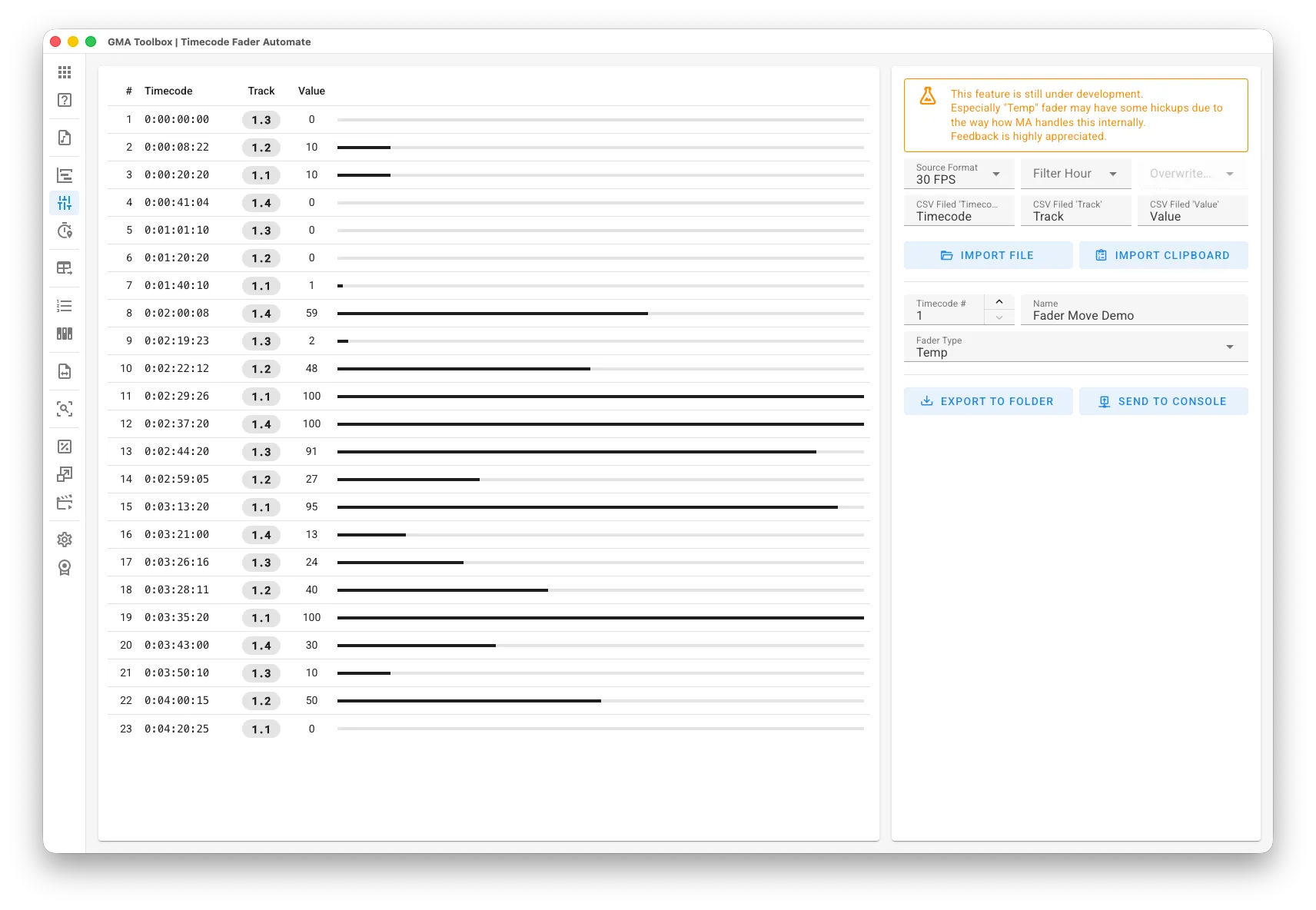
What it does
Section titled “What it does”- Turns values into fade move events
Each row of your table becomes a fader movement at a set time. - Drives movement and kinetics
Use fader automation to show complex stage movements or to control kinetic objects. Because the moves follow timecode, they stay in sync with other time-based systems such as stage automation controllers. - Builds organic effects
Feed in detailed value data — for example from an audio file you analysed elsewhere — and get smooth, natural fader moves. These effects are hard to build on a lighting console alone.
How to use it
Section titled “How to use it”- Prepare your values:
- Build a table in Excel or any other program with three columns: Timecode for the time, Value for the fader value, and Track for the target fader.
- Write the track as “Page.Executor”, for example “1.4”.
- Import the values:
- Set the import options first.
Set the delimiter and the column names on the Settings page. To check the format of your file, open it in a text editor and read the first line. - Import File reads a CSV file. Import Clipboard pastes from Excel and similar programs.
- Set the import options first.
- Set the export options:
- Choose the timecode number and the name.
- Choose the fader type:
Master creates master intensity movements only.
Temp creates temp movements and adds the On and Off events they need.
- Export the timecode:
- Manual import: save the macro and timecode to a grandMA2 or grandMA3 folder, then run the macro on the console. The macro creates the timecode.
- Direct import: send the timecode straight to the console.
The screen explained
Section titled “The screen explained”Import
Section titled “Import”- Source Format: the timecode format used for import and export.
- Filter Hour: import only markers from one hour range, and change the hour value if you want.
- CSV Field ‘Timecode’: the column that holds the times. Format: “HH:MM:SS:FF”.
- CSV Field ‘Track’: the column that holds the target fader. Format: “Page.Executor”, for example “1.4”.
- CSV Field ‘Value’: the column that holds the fader values. Range: 0 to 100.
Destination
Section titled “Destination”- Name: the name of the timecode object.
- Timecode #: the target timecode pool number.
- Fader Type:
Master creates master intensity movements only.
Temp creates temp movements and adds the On and Off events they need.
Table columns
Section titled “Table columns”- #: the row number.
- Timecode: the time at which the value applies.
- Track: the target executor.
- Value: the value applied at that time.