
Attribute Report
Analyse exported sequences and presets to see which attributes are stored as hard values and which point at a preset.
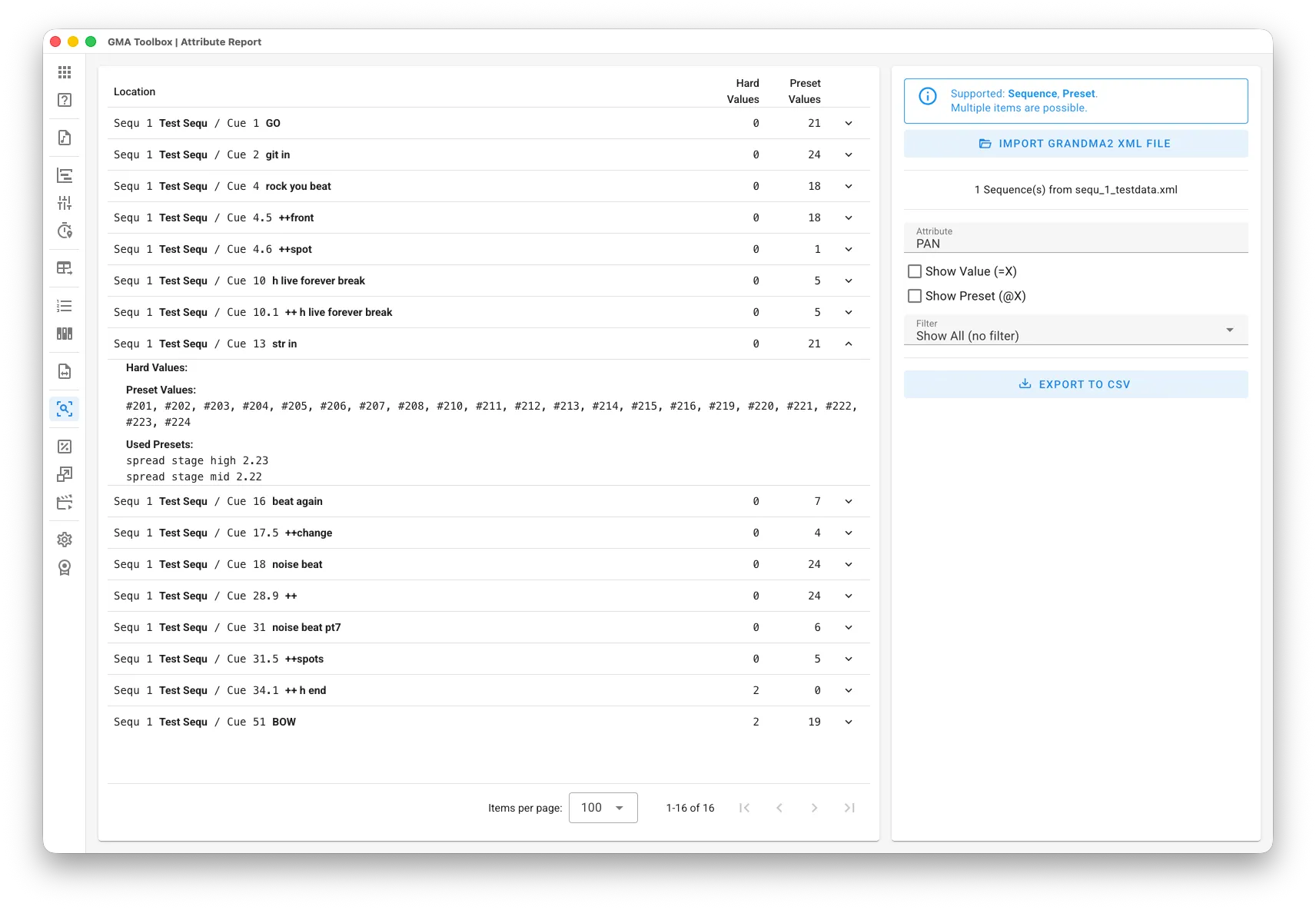
What it does
Section titled “What it does”- Finds programming you did not mean to store
Hard-value detection shows attributes such as PAN and TILT that are not linked to a preset. You can also search for attributes you do not want in your cues at all, such as control channels. Once every value points at a preset, the show is far easier to update. - Gets a showfile ready to hand over
Clean up your programming before a touring operator or a house engineer takes the file. A tidy showfile saves time on the road and causes fewer surprises.
How to use it
Section titled “How to use it”- Export sequences or presets from your showfile:
- Select a USB drive before you export. That is the quickest way to move the file.
- Run “
Export Sequence (number)” or “Export Preset (number)” to write them as XML.
One XML file can hold several items.
- Import the XML:
- Import XML File reads the exported grandMA sequence or preset file (.xml).
- Set up the report:
- Pick the Attribute you want to see.
- Set the display options.
- Export the report:
- Export to CSV writes a CSV file that matches what you see on screen.
The screen explained
Section titled “The screen explained”Report
Section titled “Report”- Attribute: the attribute to look at.
- Show Value: show the stored value as
=(value). - Show Preset: show the linked preset as
@(number). - Filter:
Show All shows every value.
Hard Values only shows the values that are not linked to a preset.
Preset Values only shows the values that come from a preset.
Table columns
Section titled “Table columns”- Location: where in the showfile the attribute sits.
- Hard Values: how many channels or fixtures hold a direct value.
- Preset Values: how many channels or fixtures point at a preset.
- Arrow icon: opens the details of that location. Fixtures appear as “
#xxx”, channels as “Cxxx”, and FixtureTypes inside presets as “FT(xxx)”.