
REAPER Scripts
GMA Toolbox works without any scripts. The following scripts just make editing REAPER projects faster.
Install the scripts
Section titled “Install the scripts”At startup, GMA Toolbox checks whether the scripts are missing or out of date. You can switch that check off in the Settings.
To install or update them, click Install/Update REAPER Scripts in the message box, or on the Settings page. This copies the scripts into the right folder and registers them in the Action List.
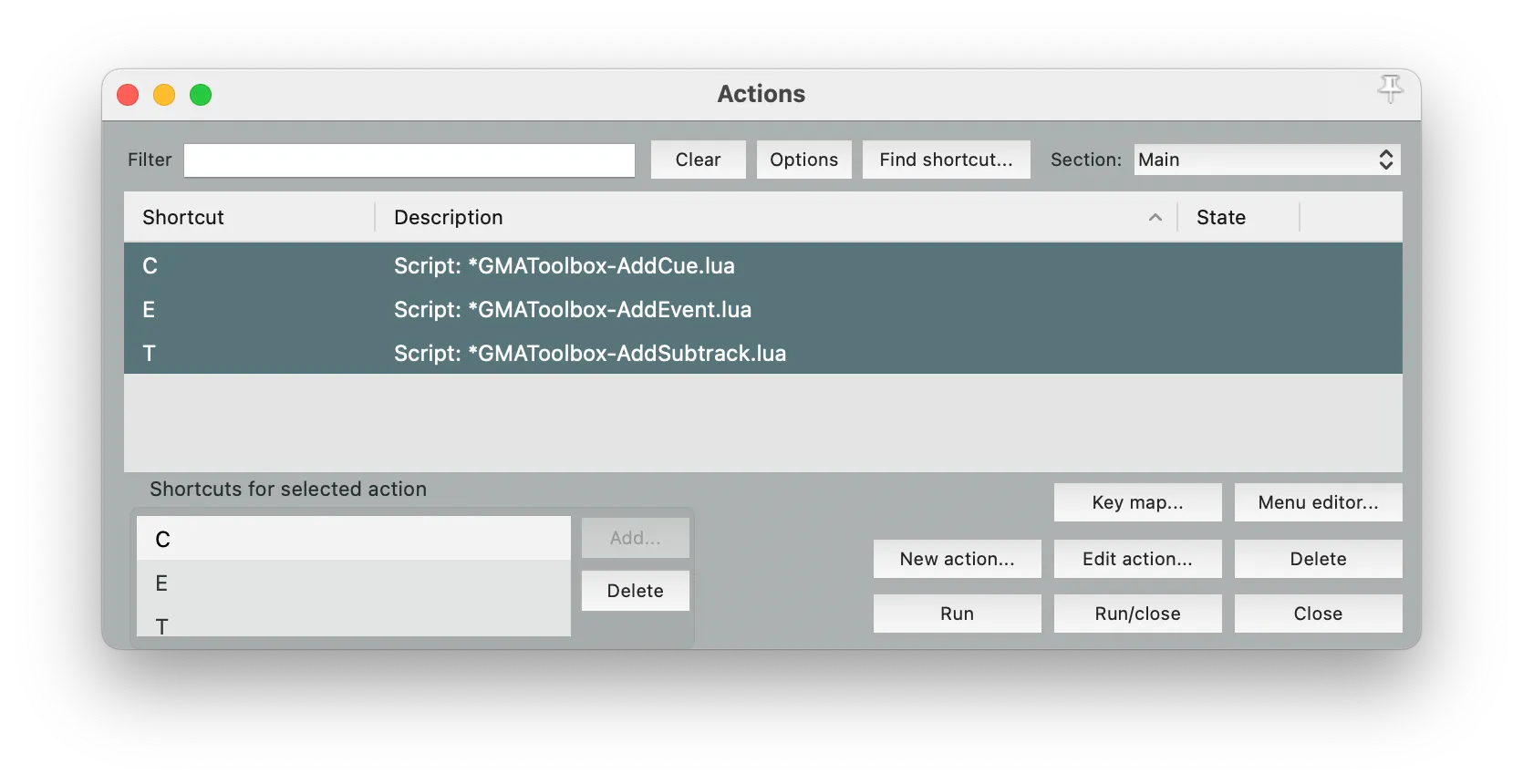
Find them in REAPER under Menu > Actions > Show Action List, where every entry starts with Script: *GMAToolbox.
Give each script a keyboard shortcut there. That is the whole point of installing them.
GMAToolbox-AddCue
Section titled “GMAToolbox-AddCue”Suggested shortcut: C
Adds a cue event to the selected track. On import as a subtrack, these events become cues and timecode events.
Select a track marked as a subtrack sequence first — its name must contain #ST=GoSequ or #ST=GotoSequ. Otherwise the script does nothing.
GMAToolbox-AddEvent
Section titled “GMAToolbox-AddEvent”Suggested shortcut: E
Adds an empty event to the selected track. On import as a subtrack, these events become timecode events.
Select a track marked as a subtrack first — its name must contain #ST. Otherwise the script does nothing.
GMAToolbox-AddSubtrack
Section titled “GMAToolbox-AddSubtrack”Suggested shortcut: T
Asks for a name and a command, then creates a track with those details and the #ST tag that marks it as a subtrack.
For everything you can do with subtrack tracks, see Subtracks from Reaper tracks.