
Reaper File Maker
Build many Reaper projects at once from a data table or a folder of audio files. Each project can hold a timecode generator and its audio file.
What it does
Section titled “What it does”- Builds one Reaper project per entry
Import a list of names — scenes, tracks, songs — from a CSV file, from the clipboard (for example out of Excel), or by scanning a folder of audio files. - Sets the timecode start for you
Take the start time from each track’s timecode offset, or set a start time that steps up with every file. - Uses your own project template
Import your own Reaper project file (.RPP) and mark the tracks with placeholders. The tool fills in the data from your table or folder.
How to use it
Section titled “How to use it”- Prepare your data:
- Write a list in Excel or any other program, or put your audio files in one folder.
- Import the data:
- Set the import options first, such as timecode offset and default length.
Set the delimiter and the column names on the Settings page. To check the format of your file, open it in a text editor and read the first line. - Import File reads a CSV file. Import Clipboard pastes from Excel and similar programs. Scan Directory reads the audio files in a folder.
- Set the import options first, such as timecode offset and default length.
- Set the export options:
- Add a path prefix if the audio files will sit in a subfolder next to the project files.
- Export the projects:
- Export all Reaper project files into the folder you choose.
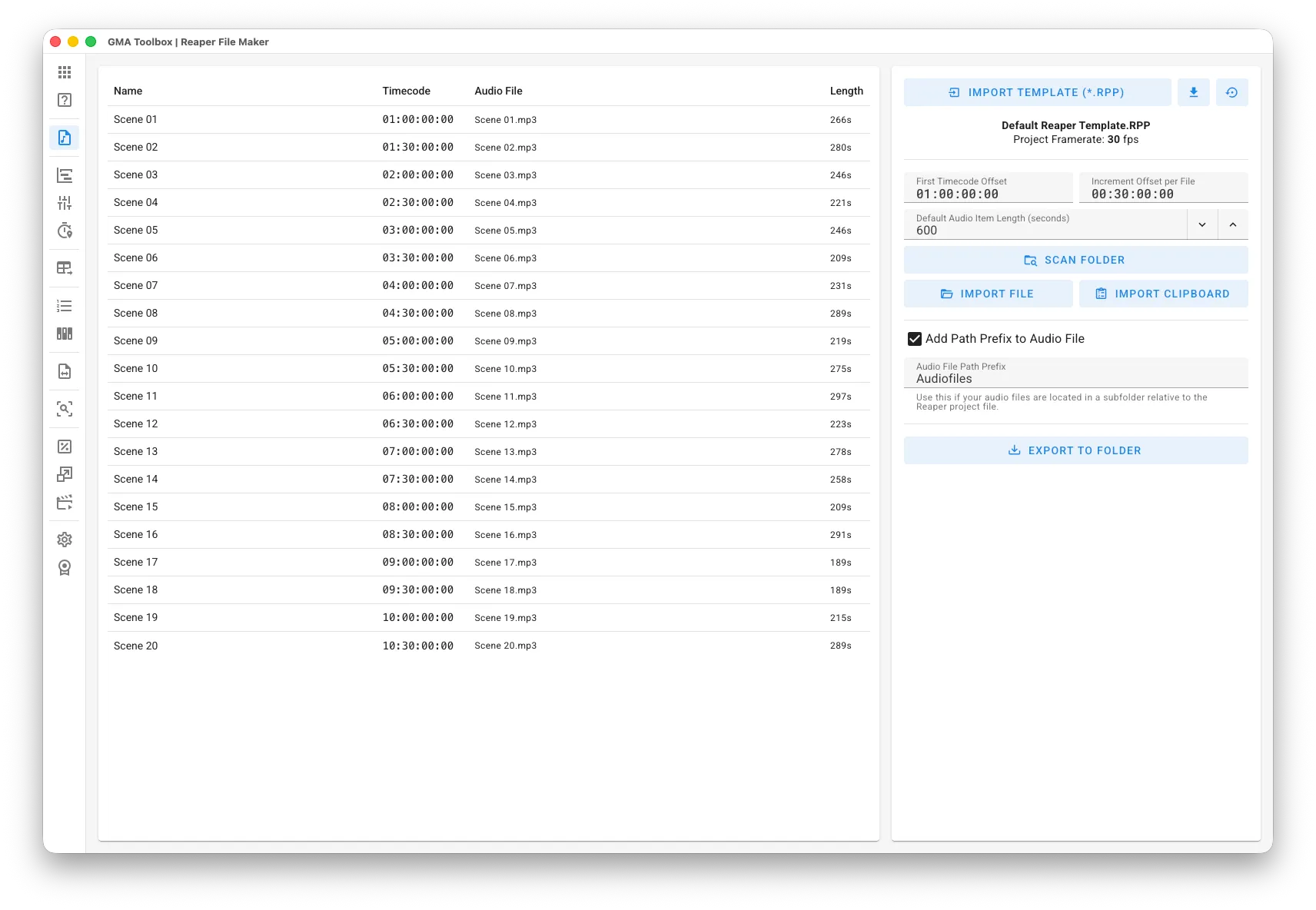
The screen explained
Section titled “The screen explained”Template
Section titled “Template”- Import Template (*.RPP): load a Reaper project file to use as the template. See Use your own template.
- Download (icon): download the template in use.
- Reset (icon): delete your template and go back to the built-in one.
Import
Section titled “Import”- First Timecode Offset: the timecode offset for the first file.
- Increment Offset per File: how much the offset grows from one file to the next.
- Default Audio Item Length: the length used when no length is given or detected.
Export
Section titled “Export”- Add Path Prefix to Audio File: puts a path prefix in front of the audio file path inside the generated project. Use it when the audio files sit in a subfolder next to the project files.
- Audio File Path Prefix: the prefix itself. Leave off the trailing slash — the tool adds it.
Table columns
Section titled “Table columns”- Name: the name of the Reaper project file.
- Timecode: the imported or generated timecode offset. Generator tracks start here.
- Audio File: the audio file added to the project. Optional.
- Length: the length of the audio file. Optional.
Use your own template
Section titled “Use your own template”The tool copies your template for every project and replaces the placeholders with values from your table or folder scan.
Mark the tracks in your template with these tags:
| Tag | Put it in the name of | The track must have |
|---|---|---|
#TIMECODE | the timecode generator track | exactly one generator item |
#AUDIOFILE | the track that gets the audio file | no items at all |
Timecode generator track
Section titled “Timecode generator track”Add a timecode generator track to your template and set it up the way you want: MTC or LTC, user bits, and so on.
On export, the tool sets the generator start time to the timecode offset. It also replaces the #TIMECODE tag with that offset, so the track name stays readable.
Audio file track
Section titled “Audio file track”Add an empty track to your template.
On export, the tool inserts the audio file into that track and removes the #AUDIOFILE tag.